
Promoting your app when it launches can have an enormous impact on your number of downloads, not only due to the traffic generated by your ads, but also by giving your app a better “organic” ranking in the list of the most downloaded apps.
Google AdWords is an ideal platform to promote your mobile app and maximize downloads using targeted keywords.
Here are the steps to follow to create a healthy, effective app install campaign:
Step 1: Implement mobile conversion tracking
It is critical to put conversion tracking in place in order to measure the effectiveness of your campaign, and optimize it to better meet your defined objectives, particularly cost per install. In the case of an app install campaign, a conversion is counted only once the user has completed the app download.
Implementing conversion tracking isn’t the same for an Android app as for an iOS app.
Conversion tracking for Android:
Tracking is fairly simple to set up for Android applications, since the Google Play store is directly connected to AdWords.
- To set up a new conversion action, simply go to “Tools” then click “Conversions”
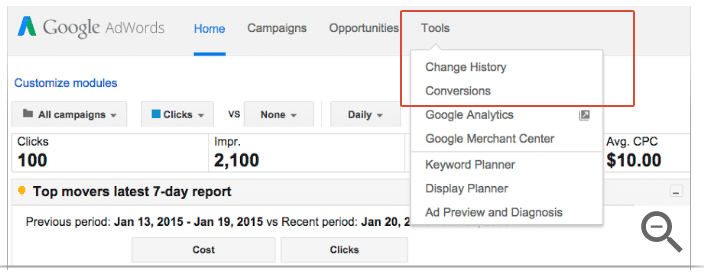
Source: https://support.google.com/adwords/answer/6255257?rd=1
- Click the +Conversion button, and choose the “App” option
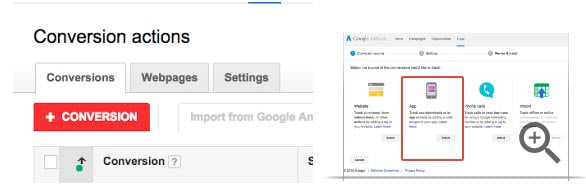
Source: https://support.google.com/adwords/answer/6255257?rd=1
- Select your platform, in this case, Android, as well as the type of conversion you want to track
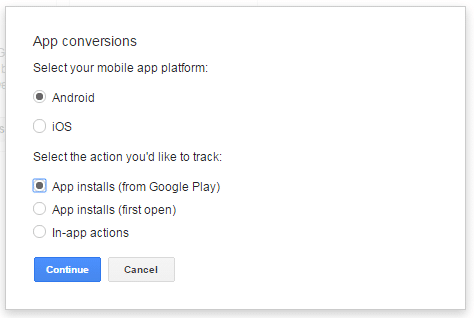
- Finally, you can name your conversion action, attribute a value if relevant, and connect to your app directly by finding it in the Google Play store
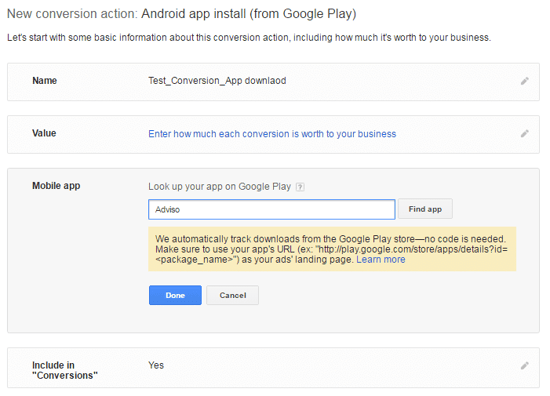
Conversion tracking for iOS:
If you want to track iOS conversions or have a multiplatform view of your conversions, you have two choices:
Option A. Adwords SDK: SDK stands for Software Development Kit; it is essentially a collection of programming tools offered to programmers by the developers of a particular programming environment or operating system.
It’s a piece of code that you can copy and paste and send to your developer. This piece of code is attributed to an event that you want to track. Once the event is triggered, it activates the piece of code and will be tracked and added as a conversion.
Steps to follow:
- Define a conversion within your AdWords account (install, first open, in-app event) - it’s the same process as the one explained above for Android conversions.
- Upload the document required to set up the SDK (one for iOS, one for Android) on the Google Developers Page. There are two SDKs available, one for Android, and one for iOS.
- Integrate the appropriate SDK to your app.
- Insert the fragment of code provided by AdWords and paste it in the appropriate places within your app, in order to track the selected conversions.
Option B. Server-to-server: This method allows you to use a third party analytics tools to track the different channels leading to a conversion, and then track activity within the app. To use it, you will need to define a conversion in AdWords, then take the unique ID provided by AdWords and integrate it to the third party platform in order to establish communication between the two platforms.
Steps to follow:
- Define a conversion in AdWords (as explained above). You will be provided with a conversion ID and a conversion label.
- Integrate the conversion label and ID to the third party platform.
- Once the integration of the conversion label and ID is complete, your third party platform should provide you with a “postback URL” that you can then paste into AdWords in order to establish communication between the two platforms.
Step 2: Creating a campaign
App-install campaigns are available on search and display networks. Today, we are going to focus on search networks, so you will need to identify relevant keywords for your mobile app. In the AdWords interface, click on the red “+Campaign” button and select “Search network only.”
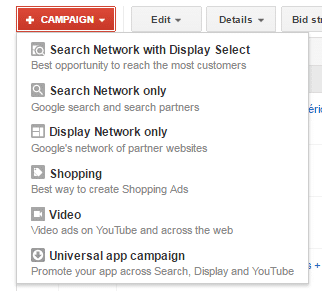
Before creating any campaigns, we suggest you give some thought to operating systems as well as devices. If your app is available for Android and iOS, we suggest you create separate campaigns for each operating system, by duplicating your campaigns.
Step 3: Select “Mobile app installs” as your campaign type
Enter a campaign name, select the “Mobile app installs” option,then select your app from the Google Play store or the App Store. Note that until the app is live, you won’t be able to create a campaign.
Additionally, you will see that it’s impossible to create all your campaigns at once, in bulk, in the AdWords Editor. For this type of campaign, you need to at least create the shell of the campaign on the Google AdWords platform.
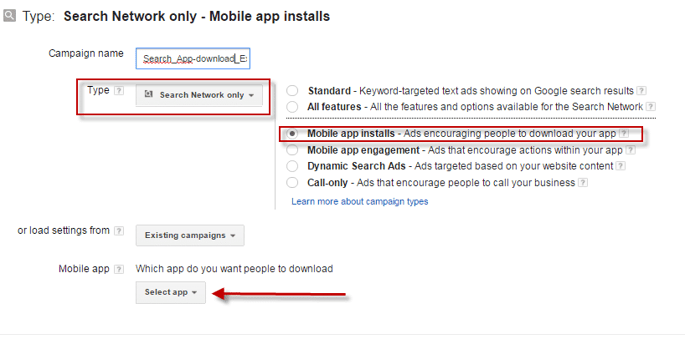
Then choose your networks, location, and language. The operating system should populate automatically once you’ve selected your app.
Step 4: Select your bid strategy and your budget
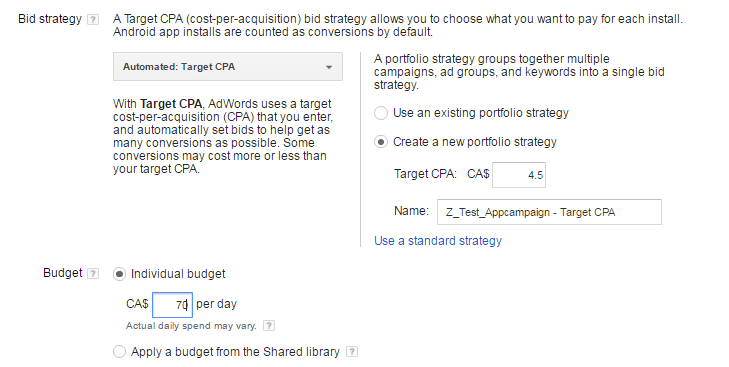
In terms of bid strategies, you have the choice between manual and automated.
For a first campaign, we recommend choosing automated bidding, and a strategy with a target CPA. Your target CPA will depend on your campaign’s strategy type, whether it’s a brand awareness campaign, or something more general (our digital media specialists can help you determine the best strategy for your campaing). Don’t make your CPA too low at the start of the campaign, as you risk losing potential conversions. This can be adjusted over time. You can adjust the daily budget of your campaign, or choose a shared budget.
Then click the “Save and continue” button at the bottom of the page. You’ve just created a campaign!
Step 5: Creation of adgroups and ads
Once the campaign has been created, you can create adgroups - this process is similar to that of creating ads for a classic search campaign. An adgroup contains a minimum of one ad (we recommend that you test different messages and calls to action) or more, as well as a set of keywords. To get the best results, focus all the ads and keywords in an adgroup around a single product or service. You can then create your ads using the same character limits as for a Desktop campaign, and deploy your list of keywords.
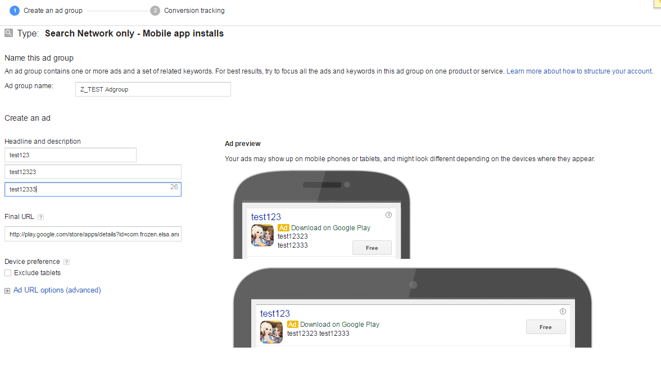
And there you have it! You can now click “Finish” and put your campaign online.
Remember - keep a close eye at the beginning of your campaign, in order to make sure your conversions are coming in properly, and that they are all being correctly tracked.
.jpg?width=40&height=40&name=ElsaBadinier_SiteInternet-150x150%20(1).jpg)